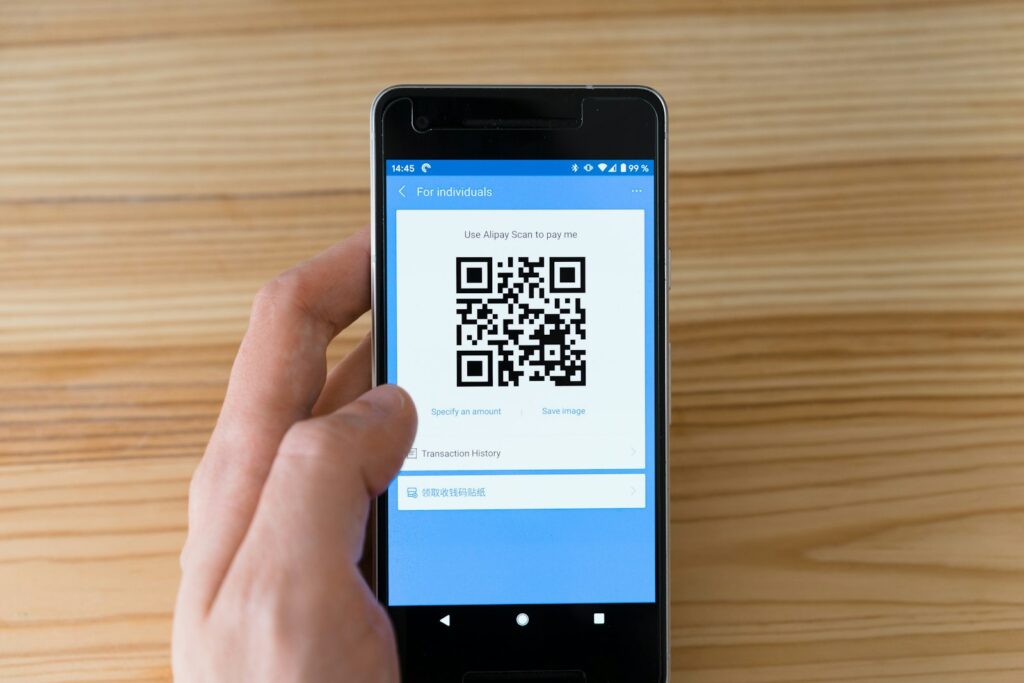
If you run a shop, café, salon or online business in Bahrain, customers increasingly ask the same question at the counter: “Can I pay with BenefitPay?” The fastest way to say yes is a BenefitPay QR code that customers scan with their phone. This guide explains what a Benefit Pay QR code is, the three ways to get one, how customers pay with it, and how to print a clean, professional QR sign for your counter, menu or shop window in a few minutes.

What Is a Benefit Pay QR Code?
BenefitPay is Bahrain’s national mobile wallet, operated by the BENEFIT company. A Benefit Pay QR code is a square barcode that carries your payment details. When a customer opens the BenefitPay app and chooses scan to pay, their phone reads the code, shows who they are paying, and lets them confirm the amount and complete the transaction in a few taps. There is no cash to count, no card terminal to hold and no waiting for change.
In 2026, BENEFIT also added a way to view your own QR code directly from the BenefitPay home screen, so receiving payments takes fewer steps. According to the announcement, each QR code is tied to the IBAN of the registered bank account, with a separate code for every account you register in the app.
Why Accept Payments by QR Code?
Faster Checkout for Customers
Customers already carry their phones. Scanning a code is quicker than finding a card or exact change, and it works as a contactless payment with no shared equipment.
No Special Hardware for You
A printed sign is often all you need at the counter. You do not need a point of sale terminal just to start accepting QR payments, which makes this attractive for small shops, home businesses, freelancers and market stalls.
Clear Records and Fewer Mistakes
Payments land directly in your bank account, so you avoid handling cash and can match each payment to your statement.
3 Ways to Get a Benefit Pay QR Code in Bahrain
There is no single route that suits everyone. Which one you choose depends on whether you are an individual, a registered business, or someone who just needs a printable sign quickly.
Option 1: Get Paid by QR in the BenefitPay App
If you already use the BenefitPay app, you can show your personal QR code from inside it, and customers or friends can scan it to send you money. This is the simplest option for individuals and very small sellers. The limitation is that you have to open your phone every time, and it does not give you a branded sign to leave on the counter.
Option 2: A Merchant QR Through Your Acquiring Bank
Registered businesses can accept BenefitPay payments through the merchant route. BENEFIT offers a separate BenefitPay Merchant app that lets merchants generate a QR code to accept payments from the BenefitPay user app, and it works with several acquiring banks. According to the app listing, you register by contacting your acquiring bank. Ask your bank which documents are required and whether any fees or limits apply, because those terms are set by the bank and by BENEFIT, not by us. You can also find more details at benefit.bh.
Option 3: Print Your Own QR Poster From Your IBAN
If you want a clear sign ready to place at the counter today, you can create one from your IBAN. Khetta’s free Benefit Pay QR code generator turns your IBAN into a print-ready PDF in Arabic or English, with an optional business name and logo. There is no sign-up and no subscription, and you choose from three template designs, sized for A5.
How to Make a Benefit Pay QR Code With the Free Generator
Follow these steps to create your sign.
Step 1: Open the Tool and Pick a Template
Go to the free QR code generator and choose the design that best fits your shop, whether you prefer black circles, a red “Pay By” style or a clean white sign with “Scan to pay” in English and Arabic.
Step 2: Enter Your IBAN Carefully
Type the IBAN of the account that should receive payments. Check every character, because one wrong digit sends money to the wrong place. If you are not sure, copy it from your bank app rather than typing it from memory.
Step 3: Add Your Business Name and Logo
Both are optional, but they make the sign look professional and help customers confirm they are paying the right business. You can add your name in Arabic or English.
Step 4: Download and Print
Generate the PDF and print it at A5 size or larger. Use good quality paper or a frame, and keep the QR area clean, flat and free of glare.
Step 5: Test It Before You Use It
Scan the printed code with your own BenefitPay app and send a small amount to yourself or a trusted contact. Confirm the account name and that the money arrives. Only then display the sign to customers.
How Customers Pay With Your QR Code
The customer flow is simple. They open the BenefitPay app, tap scan to pay, scan your code, enter the amount and confirm with their usual security step. You receive the payment and can check it in your banking app. For busy places, tell staff to ask the customer to show the confirmation screen before handing over the goods.
Where to Place Your QR Code
The best place is wherever the customer is already deciding to pay. Put it at the cashier counter, on table stands in a café, on the menu, at the pick-up window, on delivery receipts and in your Instagram bio or invoice if you sell online. Keep it at eye level, well lit, and large enough to scan from a comfortable distance.
Is a Benefit Pay QR Code Safe?
Protect Your Account Details
A QR code for an IBAN contains the same information you would give someone to send you a transfer. That is normal for receiving money, but treat it carefully: only print codes from tools you trust and never share one-time codes or passwords with anyone.
Watch for Tampering
Scammers sometimes stick their own QR code over a real one. Place your sign where staff can see it, check it regularly, and laminate or frame it so stickers are easy to spot.
Keep Your Bank Details Up to Date
If you change bank accounts, print a new sign and remove the old one right away.
Benefit Pay QR Code Not Working? Quick Fixes
If a code does not scan, first check that the print is sharp and not too small, that there is no glare or crease across it, and that the customer’s phone camera and app are up to date. If a payment does not arrive, confirm that the IBAN is correct and that the customer’s payment shows as completed. For account or fee questions, contact your bank or BENEFIT directly.
Beyond the QR Code: Digitize Your Whole Customer Journey
A QR code makes it easy to get paid, but customers also expect to book, order and come back. Pair it with an online appointment system so people book before they pay, or add a digital loyalty card to reward repeat visits. For a complete online presence, Khetta also builds websites and landing pages for Bahraini businesses; see our WordPress development service.
Frequently Asked Questions
How do I get a QR code to take payments in Bahrain?
You can show your QR code from the BenefitPay app, register as a merchant through your acquiring bank, or print your own sign from your IBAN with a free generator.
Is the Benefit Pay QR code generator free?
Khetta’s generator is free, needs no sign-up and produces a print-ready PDF in Arabic or English.
Is a BenefitPay QR code linked to my bank account?
Yes. A QR code based on your IBAN points to the bank account that will receive the payment, which is why you should double-check the IBAN you enter.
Do I need special equipment to accept QR payments?
No. A printed or displayed QR code and a phone to confirm payments are usually enough for small businesses.
Are there fees for accepting payments with a QR code?
It depends on how you register and on your bank’s terms. Ask your bank or BENEFIT about any charges for merchant accounts.
Conclusion: Start Accepting BenefitPay Today
Getting paid by BenefitPay does not require expensive equipment. Choose the route that fits your business, print a clear QR sign, test it, and keep it safe. If you want a quick, professional sign today, try the free Benefit Pay QR code generator, and contact Khetta when you are ready to bring more of your business online.